.svg)
.svg)
.svg)


.svg)


.svg)
.svg)

.svg)

On-premise SQL server has ability to store backups on Azure cloud using backup feature.
In this blog we will discuss "how to perform SQL database backup using URL with the help of Azure blob storage"
Few steps need to follow before initiate the backups to Azure storage.
Let's begin with storage account creation and blob container to keep the backups.
This process will be useful while migrating databases from On-premise to Azure Managed instance.
1. Create storage account using Azure portal. Go to Storage account service and click add button to create new storage.
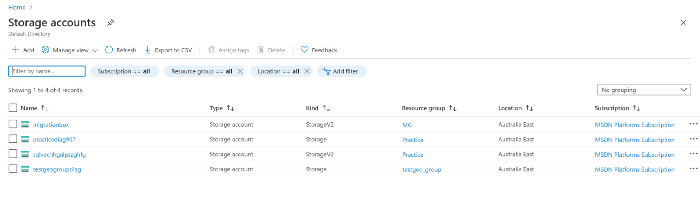
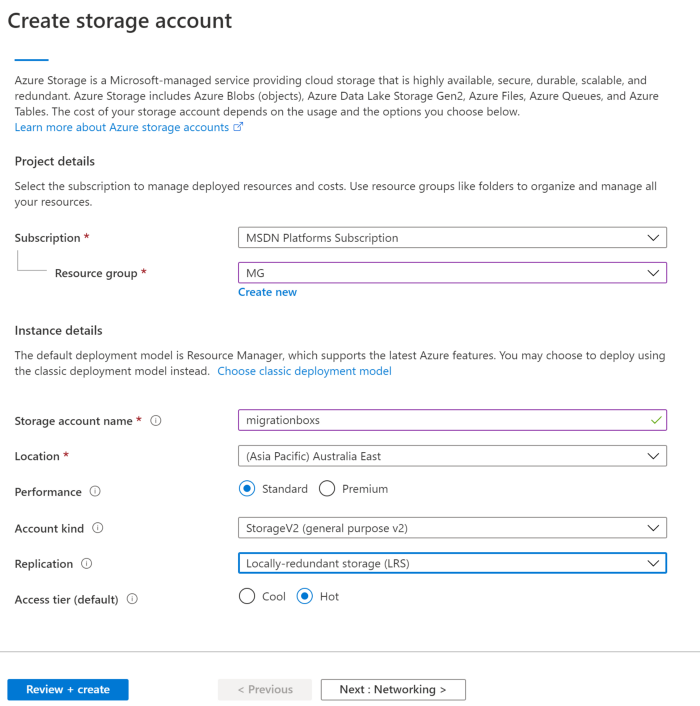
2. Configure new storage as below
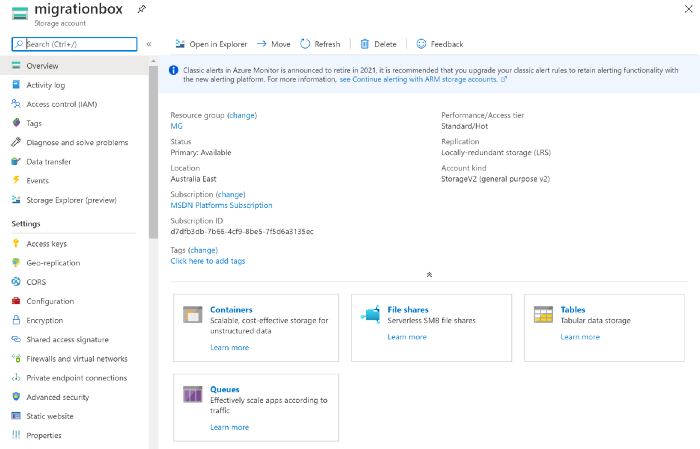
3. Once storage account created, click on container
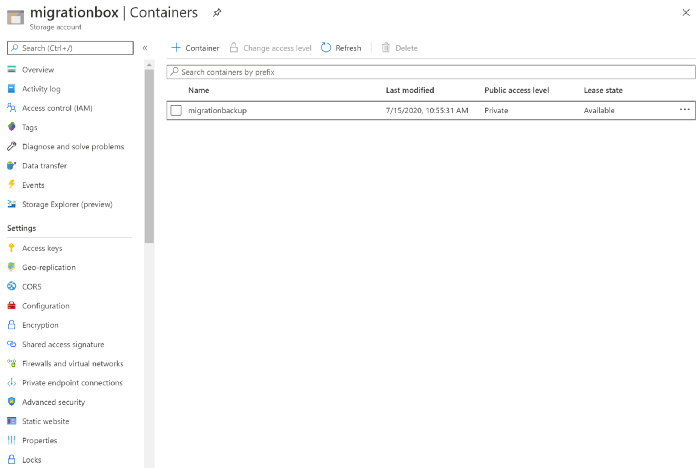
4. Add new container and provide the preferred name (It will act as folder). I have used migrationbackup as container name.
5. Once created click on shared access signature and select type as container and generate key. Choose end for endpoint access.
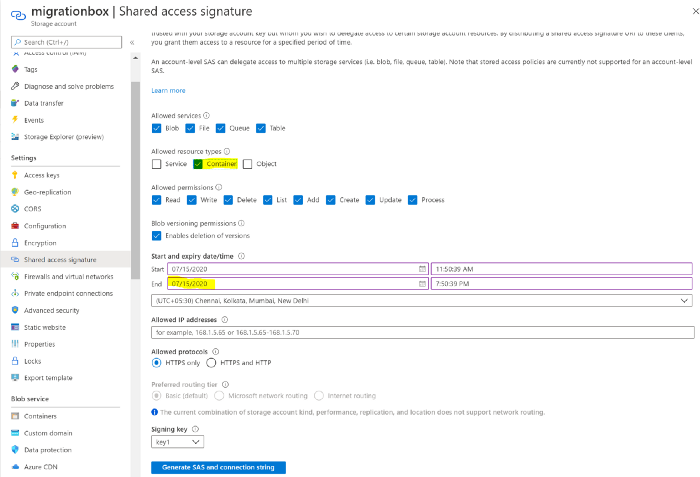
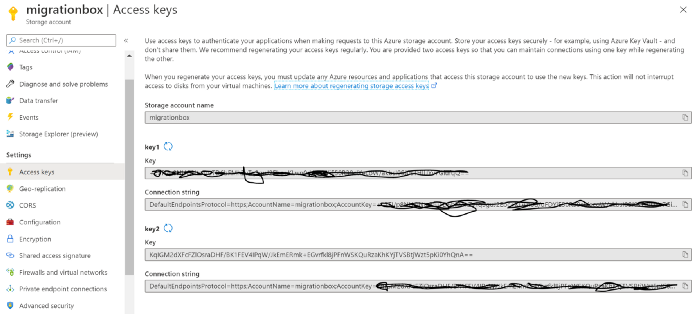
6. Once generated click on Access key tab and copy the key secret
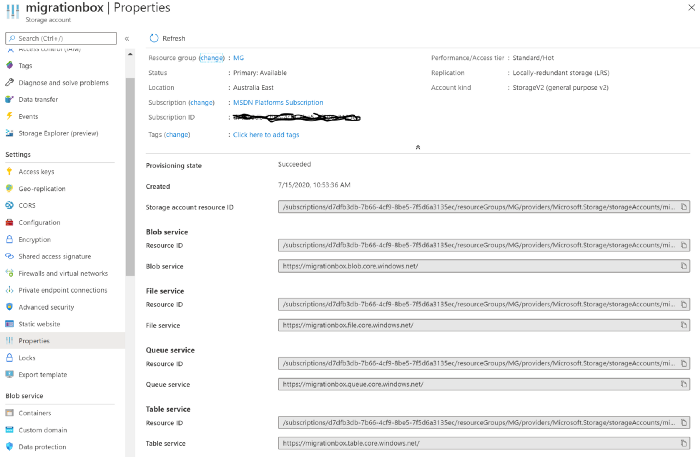
7. Copy the blob URL link from properties tab
8. Now connect the local server and execute below query, in identity you have to use the azure storage account name and in secret copy paste the key1.
create credential backupurl
with identity ='migrationbox',
SECRET = '+xxxxxxxxxxxxxxxxxxxxxxxxxxxxxxxxxxxxxxxxxxxxxxxxxxxx'
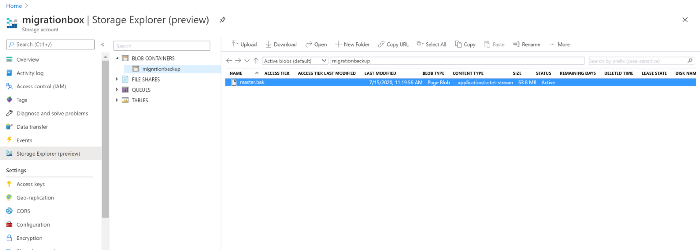
9. Then perform the backup to newly created container called migrationbackup
backup database master to url = 'https://migrationbox.blob.core.windows.net/migrationbackup/master.bak'
WITH CREDENTIAL = 'backupurl'
URL should be bloblink+containername+backupfilename.
10. Once completed go and validate on container using Storage explorer

Thirunavukkarasu RM
.svg)
.svg)