.svg)
.svg)
.svg)


.svg)


.svg)
.svg)

.svg)


In this blog, I am going to show how to initialize the SQL Server replication using the backup without taking the snapshot for all the articles, we all know if the database is very huge it is time consuming if we use snapshot option. In this example, I am going to show systematic approach on how to achieve replication using backup.
Step 1: First, Configure the publication and choose the database, which you want to participate in replication.
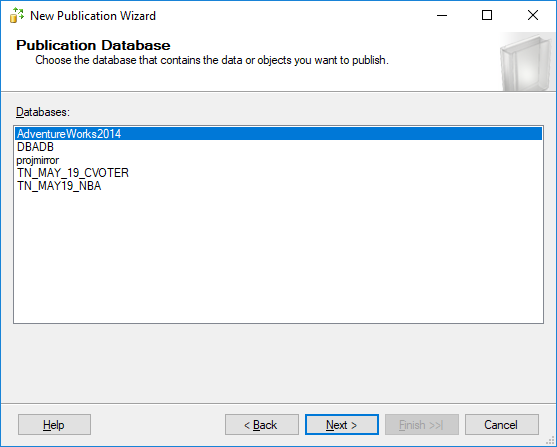
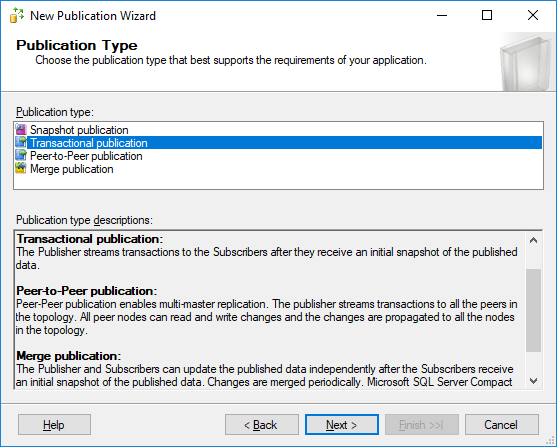
Step 2: Choose the type of replication, next select the tables that you want to participate in replication, in this example I am doing for transactional replication.
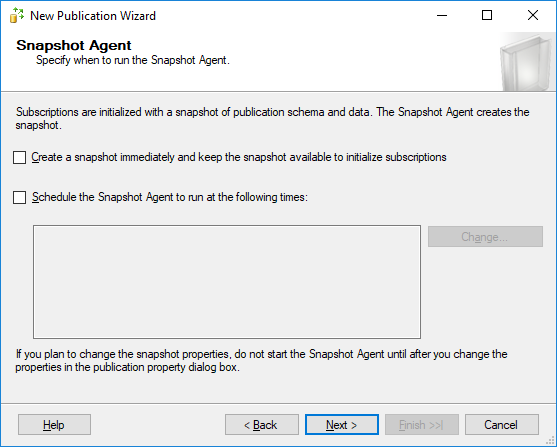
Step 3: This is very important step where you have to decide if you want to use snapshot or not. In our case, since we are using backup instead of snapshot so we leave these two fields blank and click on next, as shown in the below figure.
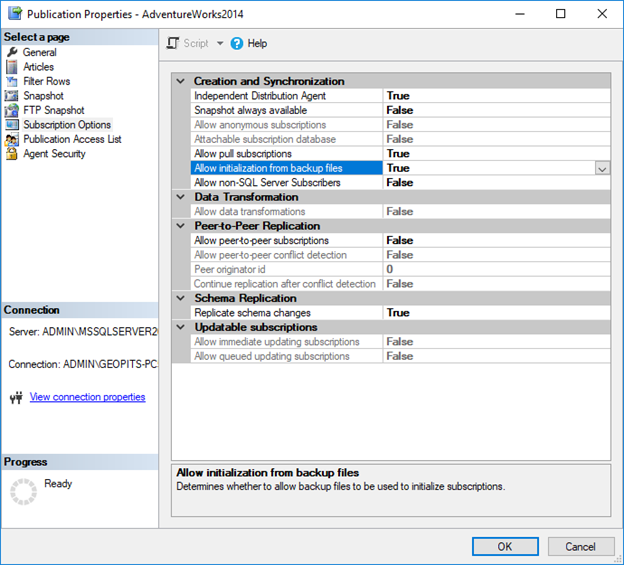
Step 4: After configuring publication, right click on publication properties and set 'Allow initialization from backup files' to true.
Step 5: Now, we need to take the backup of the database from Publisher.
We can use either SSMS or script to do this job. In my example, I am going to use the script.
/*Take backup of publisher database*/
BACKUP DATABASE AdventureWorks2014 TO DISK = 'D:\Replication\AdventureWorks2014.bak '
Step 6: Next, we need to restore the backed-up database on subscriber
/*At the publisher, run the following command */
USE AdventureWorks2014
GO
RESTORE DATABASE AdventureWorks2014 FROM DISK = 'D:\Replication\ AdventureWorks2014.bak '
WITH MOVE 'AdventureWorks2014_Data' TO 'D:\MSSQL\AdventureWorks2014_Data.mdf',
MOVE 'AdventureWorks2014_Log' TO 'D:\MSSQL\AdventureWorks2014_log.ldf',
REPLACE, STATS
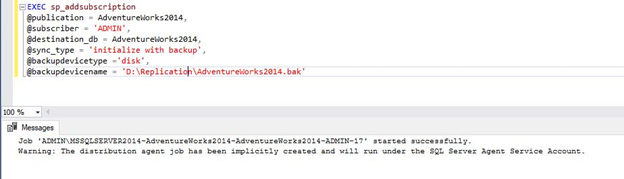
Once you execute the above command, you will get the below message, now the replication was successfully setup.
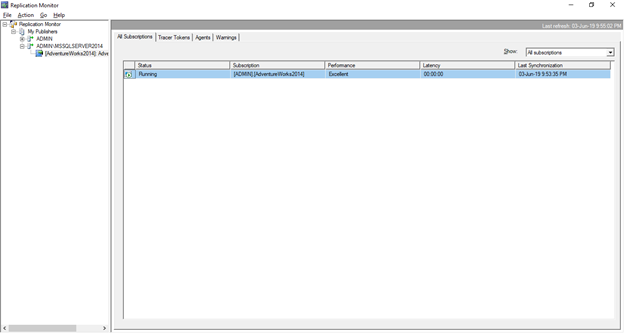
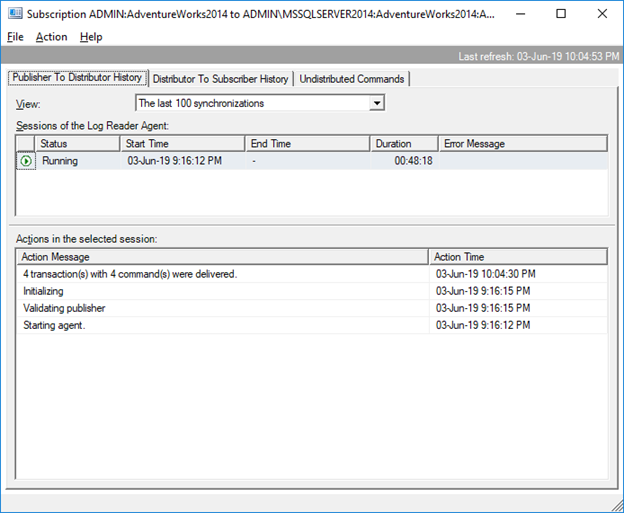
We can check the replication status using SSMS under replication -> Replication Monitor
No snapshot was generated.
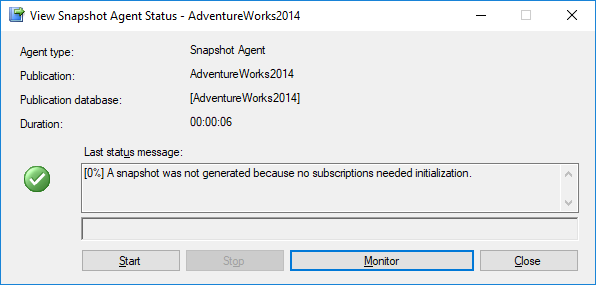
All the transaction has been delivered to the subscriber successfully without generating any snapshots.
.svg)

.svg)