The Azure SQL query editor in the Azure portal is now generally available. Microsoft's release notes list general availability in September 2026, and the Azure SQL team announced it on its blog on 22 October 2026. The new version replaces the older single-pane editor with a proper workspace for Azure SQL Database: an Object Explorer, multiple query tabs, a results grid you can sort and filter, and one-click export.
Our DBA team tried it on a demo Azure SQL Database to see how far it goes for everyday work. Everything we checked ran inside the browser, with no client tools installed on the machine. This post walks through what we found, step by step, with screenshots from that environment, and ends with the limits worth knowing before you rely on it.
What is new in the Modern Query Editor
The query editor is a browser-based tool in the Azure portal for running T-SQL against an Azure SQL Database. The generally available release brings these changes.
A walkthrough from our demo environment
The screenshots below come from a Geopits demo environment loaded with the SalesLT sample schema. The server and login happen to be named "prodserver", but this is a test database, not a production system.
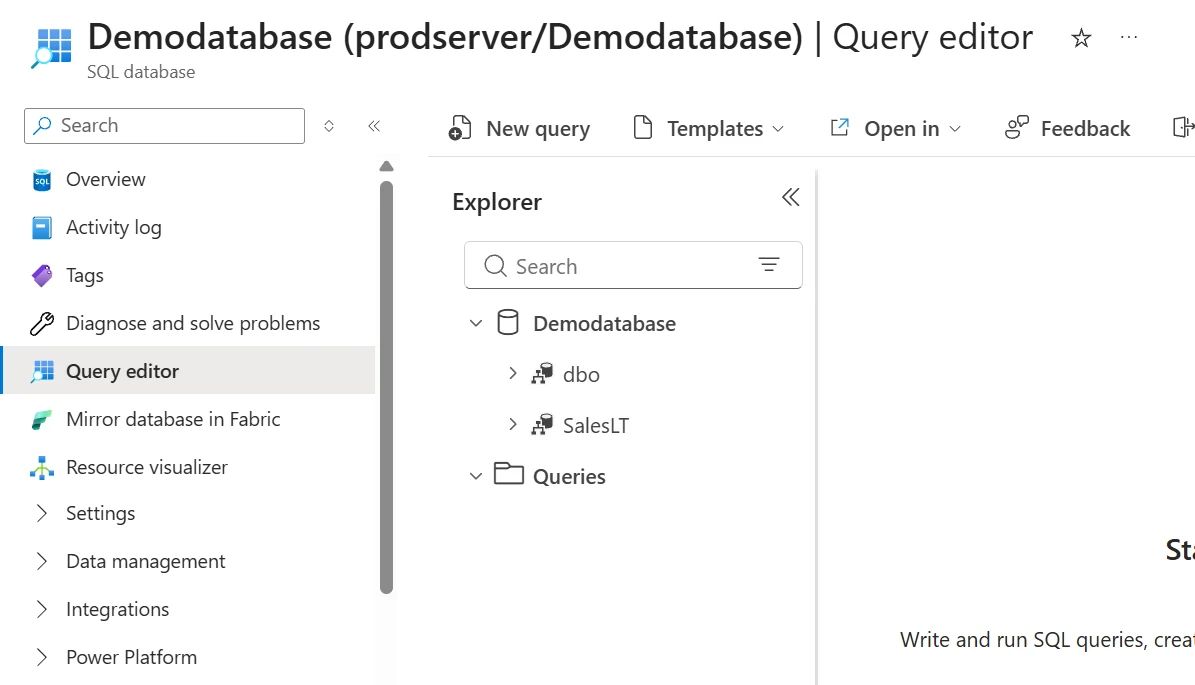
1. Opening the query editor from the Azure portal
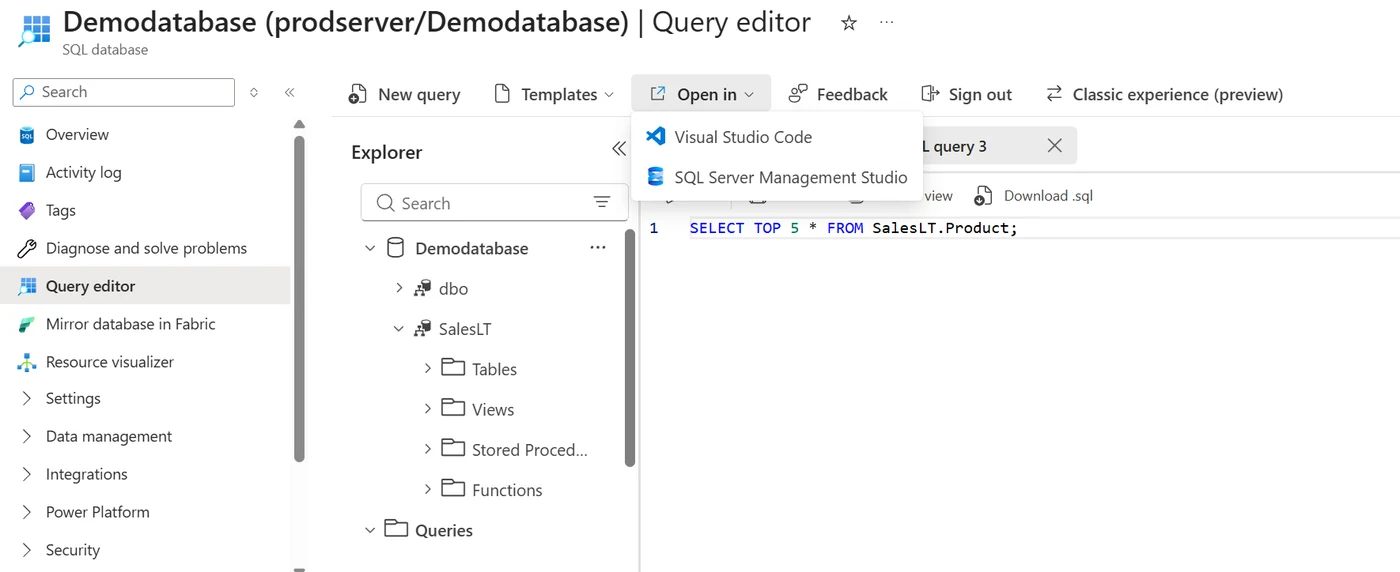
In the Azure portal, open the Azure SQL Database resource and select Query editor from the resource menu on the left. The editor opens in the same blade, with the Explorer pane on one side and New query, Templates and Open in along the top. There is nothing to install locally, which makes it handy on a machine that does not have SSMS.
2. Signing in with Microsoft Entra ID or SQL authentication
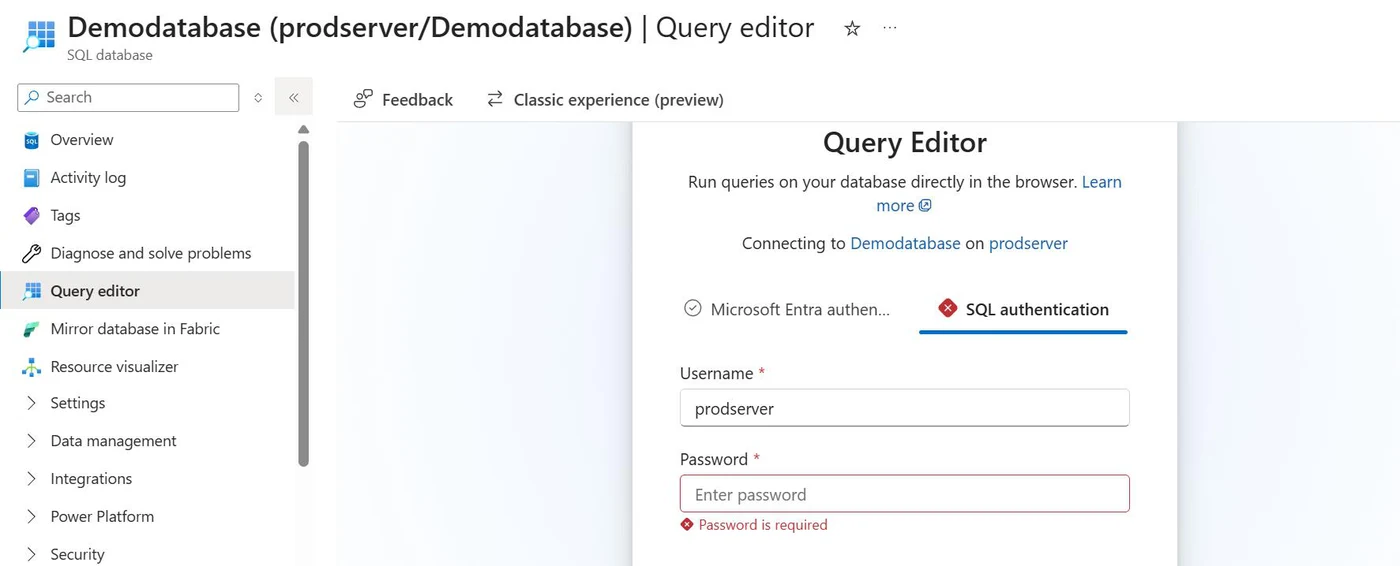
The first screen asks how to connect. The editor supports passwordless Microsoft Entra authentication as well as native SQL authentication with a username and password. Sign-in happens inside the Azure portal itself, which ensures secure, identity-driven access to the database.
Each method needs a little groundwork. For SQL authentication, the login has to exist in the logical server's master database, or as a contained user in the database itself. For Entra authentication, the database needs Entra authentication configured and an Entra user created inside it. We cover the wider picture in our post on security in Azure SQL.
3. Getting around the Object Explorer
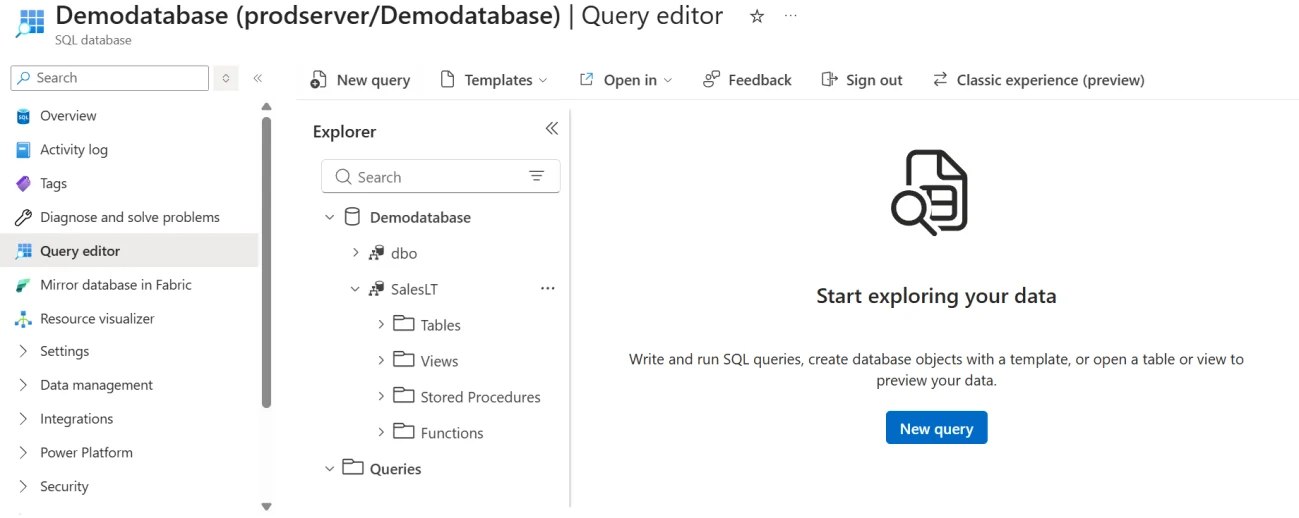
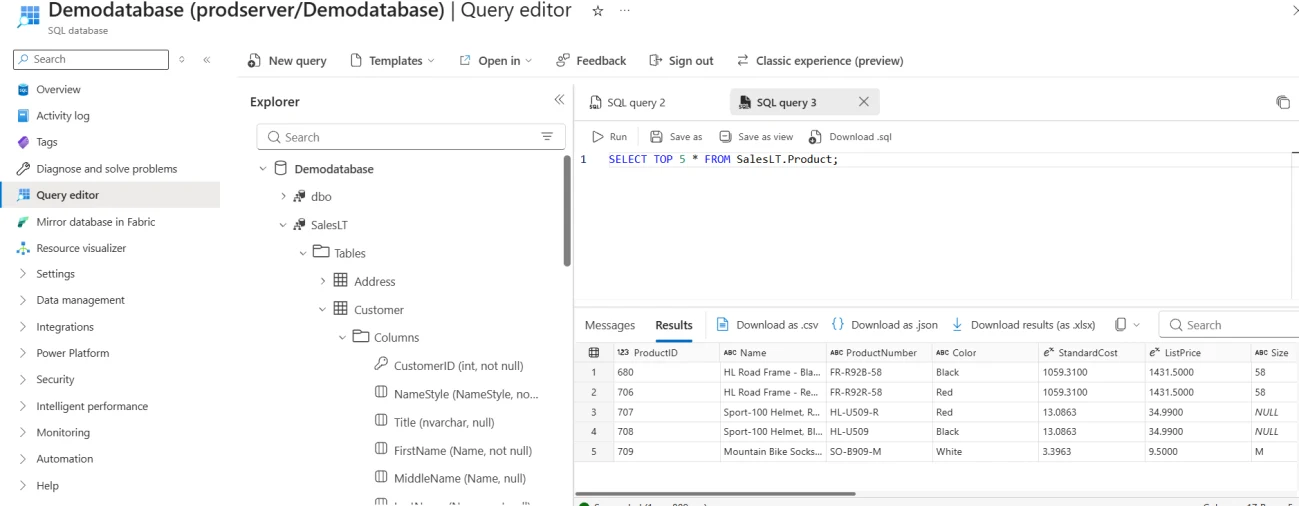
Once connected, the workspace opens with the Explorer on the left and a quick-start canvas in the middle. The tree is grouped by schema, with folders for tables, views, stored procedures and functions, and a Queries node at the bottom.
Expanding a table lists its columns with the data type, nullability and primary key shown inline. That covers the quick checks we would normally do with sp_help or a query against the system views, and it sits right next to the results grid.
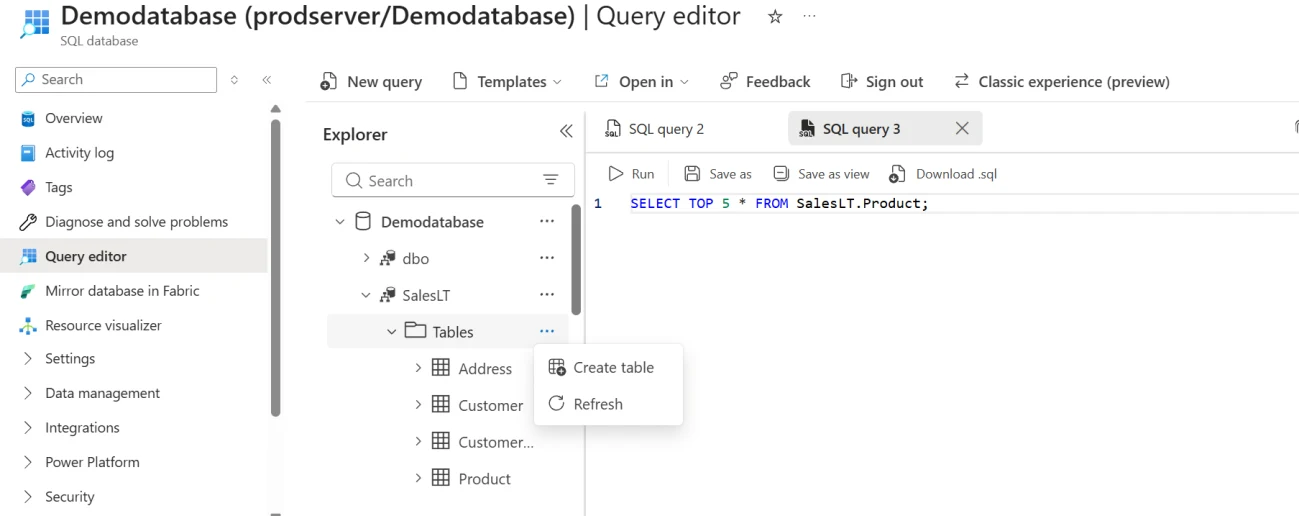
Right-clicking the Tables folder offers Create table and Refresh, so a newly created object appears in the tree without reconnecting.
4. Writing queries with IntelliSense
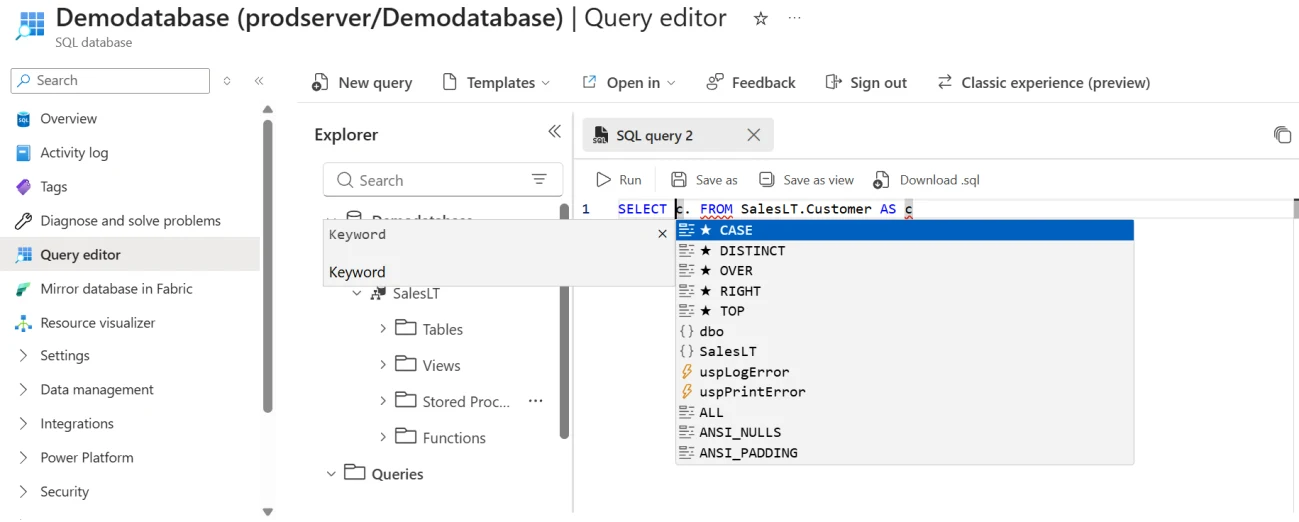
Typing in a query tab brings up suggestions as the statement takes shape. In our test the list offered T-SQL keywords, the dbo and SalesLT schemas, and stored procedures such as uspLogError and uspPrintError. Microsoft's documentation notes one gap: IntelliSense covers tables and views but not column names. For heavier development with full column completion, SSMS or VS Code is still the better place.
5. Running a query and reading the results
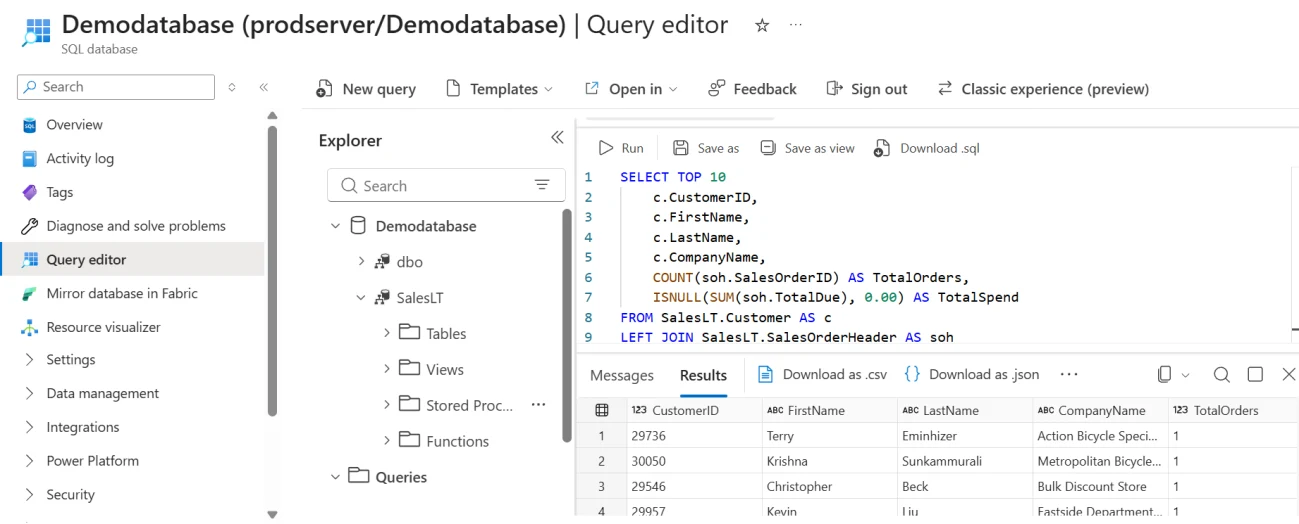
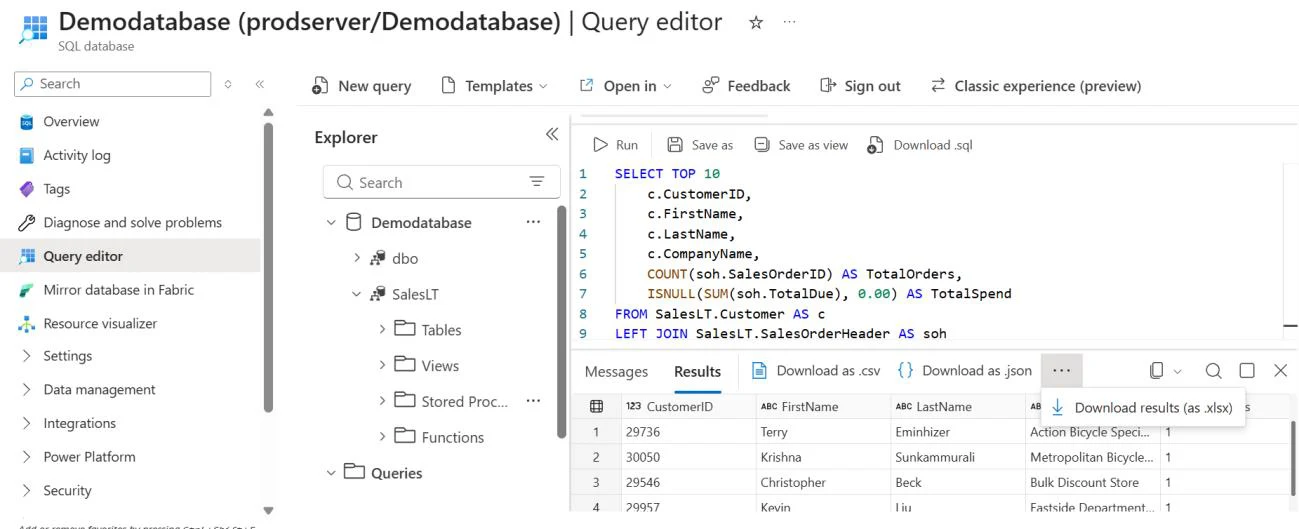
We ran a multi-table aggregate query against the SalesLT schema: the top 10 customers with their total orders and total spend, joining the Customer table to SalesOrderHeader. The results load into a grid that shows the data type of each column. You can sort and filter the grid, and copy cells, rows or columns straight out of it.
The Messages pane and the status bar report what happened. For a SELECT TOP 5 query, the Messages pane showed "Affected rows: 5" and the status bar showed the run took 1 sec 009 ms. The Copy messages button puts that output on the clipboard, which helps when recording what was run during troubleshooting or for audit notes.
6. Exporting results to CSV, JSON or Excel
The results toolbar has three download options: CSV, JSON and Excel (.xlsx). The file comes straight from the browser. For a quick extract to share with an application team or to check offline, this works without external ETL or a separate client-side export tool.
7. Working across multiple tabs and saved queries
Each New query opens a separate tab, so several ad hoc scripts can stay open in one browser session. We moved between them freely without losing what had been typed in each.
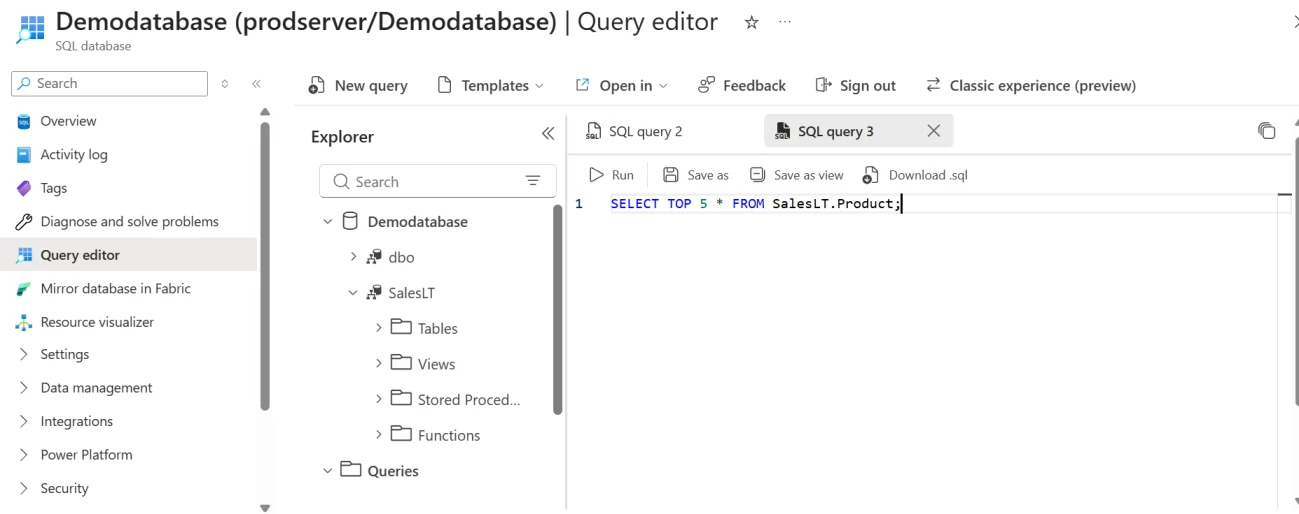
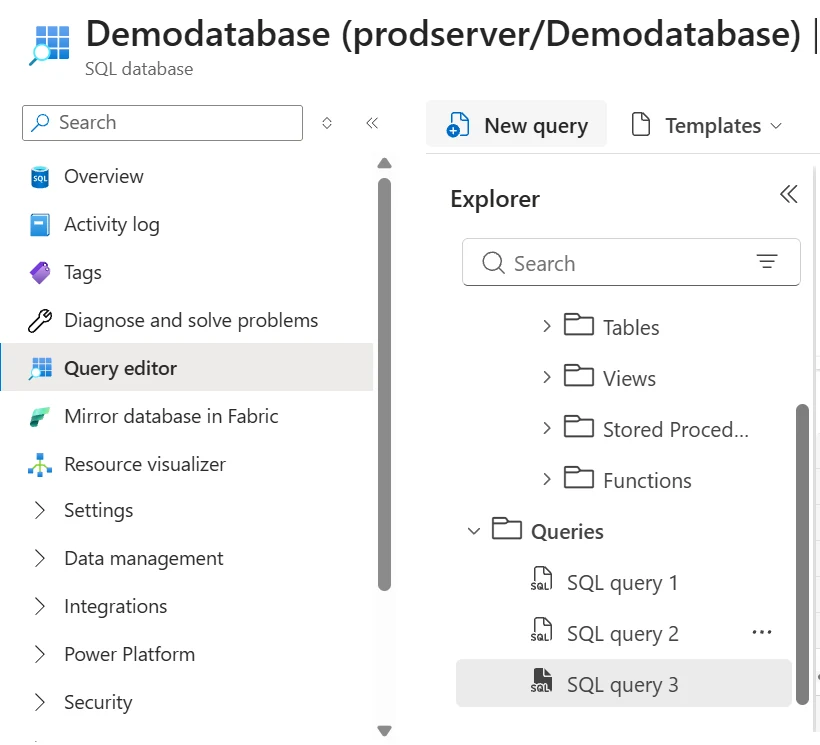
The Explorer also lists these scripts under the Queries node (SQL query 1, SQL query 2 and SQL query 3 in our test), so it is easy to find and switch between them from the tree. These queries live in the browser rather than in the database, so anything worth keeping long term still belongs in source control.
8. Creating objects from built-in templates
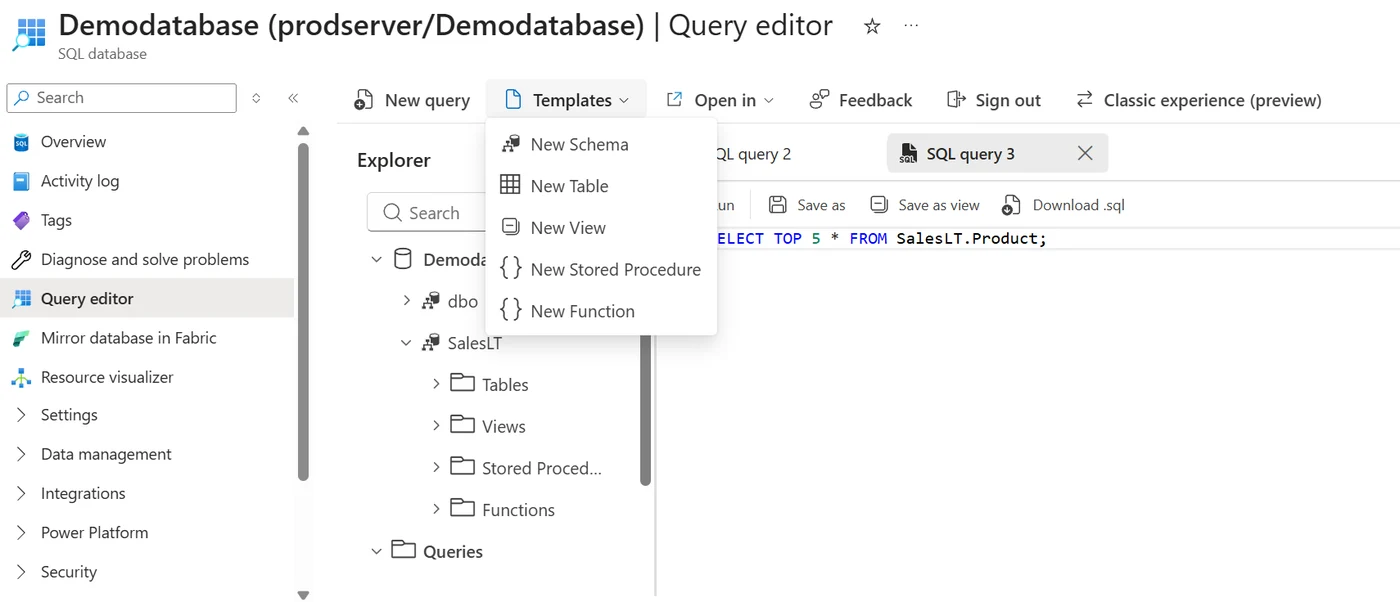
The Templates menu on the toolbar offers New Schema, New Table, New View, New Stored Procedure and New Function. Each opens a tab with standard T-SQL boilerplate for that object, ready to edit. It saves retyping the same CREATE structure and keeps new objects consistent.
9. Handing off to Visual Studio Code or SSMS
When a task outgrows the browser, the Open in menu passes the same database to Visual Studio Code (with the MSSQL extension) or SQL Server Management Studio. For us, this is the most practical part of the release. A quick check starts in the portal and moves to a full desktop tool in one click when the work needs it. If SSMS is new to your team, our guide on connecting to Azure SQL Managed Instance with SSMS covers the connection steps.
Fixing the most common connection error: the server firewall
The first problem most people run into is not the editor but the network. If the logical server allows only selected networks, the browser's public IP address has to be allowed through the server firewall before the editor can connect.
To fix it, open the SQL server (the server, not the database) in the Azure portal and go to Security, then Networking. With public network access set to Selected networks, select Add your client IPv4 address under Firewall rules and save. The editor also offers a one-click option to add the client IP when it detects this error.
Two related points from Microsoft's documentation. The editor now uses only TCP port 443, so outbound HTTPS has to be open on your local network. And when Private Link is set up and the connection comes from inside the virtual network, the firewall rule is not needed.
Limits to know before relying on it
Microsoft positions the editor for lightweight querying and exploration, and the documented limits reflect that.
The editor applies to Azure SQL Database. For a side-by-side view of how it differs from Managed Instance and Amazon RDS, see our comparison of RDS SQL Server, Azure SQL Database and Azure SQL Managed Instance. These limits may change as Microsoft updates the editor.
Where it fits in a DBA's day
For us, the editor earns its place in the small moments. Checking whether a row landed after a deployment. Looking up a column's data type during a call. Pulling a quick CSV for an application team. Confirming a login works after a firewall change. It is quick to reach, needs no setup on a borrowed laptop, and access stays inside the Azure portal.
It does not replace SSMS or VS Code for serious work. Performance tuning, long-running maintenance and anything that runs past five minutes still happen on the desktop. The Open in menu makes that switch painless, so we treat the two as one workflow rather than a choice between them.
If you would rather have someone watch over your Azure SQL estate day to day, take a look at our remote DBA services. Teams still moving workloads to Azure can start with our cloud database migration practice.
Frequently asked questions
1. Is the Azure SQL query editor generally available?
Yes. Microsoft lists the Azure portal query editor for Azure SQL Database as generally available from September 2026 and announced the release on 22 October 2026. The classic experience is still available through a toggle.
2. How do I open the query editor in the Azure portal?
Open the Azure SQL Database resource and select Query editor in the resource menu. Then sign in with Microsoft Entra ID or SQL authentication.
3. Why can't the Azure SQL query editor connect to my database?
The most common cause is the server firewall blocking your browser's public IP address. Add your client IPv4 address under Security > Networking on the logical server, and make sure outbound port 443 is open on your network.
4. Can I export query results to Excel from the Azure portal?
Yes. The results toolbar can download results as CSV, JSON or Excel (.xlsx) straight from the browser.
5. Does the Azure SQL query editor replace SSMS?
No. It is built for quick queries and exploration. Queries time out after five minutes and IntelliSense does not cover columns, so the Open in menu hands longer work over to SSMS or Visual Studio Code.
6. Which authentication methods does the query editor support?
It supports Microsoft Entra authentication and SQL authentication. Entra needs an Entra user in the database, and SQL authentication needs a login in master or a contained database user.
Wrapping up
The generally available query editor makes quick T-SQL work in Azure SQL Database much easier than it used to be, and the handoff to SSMS and VS Code covers the rest. For more hands-on notes from our DBA team, browse the Geopits blog. If a second pair of eyes on your Azure SQL environment would help, talk to our team or request a free database audit.
Related reading
- Azure SQL Database Hyperscale for AI apps (webinar)
- 7 ways to migrate an on-premises SQL database to Azure
- Top 7 things to look for in a managed DBA service provider
- SQL Server services at Geopits
Sources: Microsoft Tech Community, Modern Query Editor for Azure SQL Database is now generally available; Microsoft Learn, Azure portal query editor for Azure SQL Database.

Kalaimani S