.svg)
.svg)
.svg)


.svg)


.svg)
.svg)

.svg)

Recently I came across the following question quite a few times, "is it possible to upload PDFs in to SQL Server?". So I planned to post this article which demonstrates how to upload PDFs in to SQL Server.

1. Enabling file stream feature in SQL Server
Go to SQL Server configuration manager and right click SQL Server service. Then we go to the filestream tab and enable file stream as shown below.
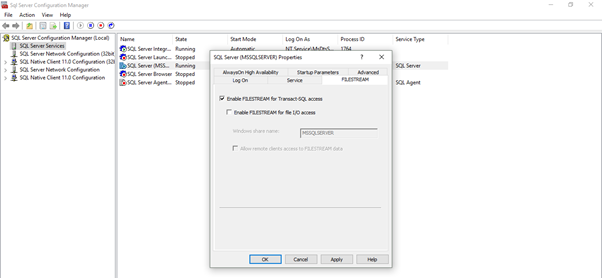
Once the changes are made, the SQL server needs to be restarted.
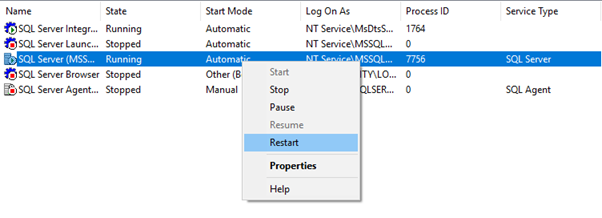
Once the filestream is enabled at the service level, the filestream needs to be enabled inside the SQL Server. Once the SQL Server is restarted, login to the server to enable file stream feature using the below syntax:
EXEC sp_configure filestream_access_level, 2
RECONFIGURE

2. Creating DEMO database
Create a new database with a name of your choice. I have named the DB as GeoPITS_DEMO as shown below.

Click Filegroups from the left pane to create a new filegroup for filestream. The following tab opens up on clicking 'FileGroups'.
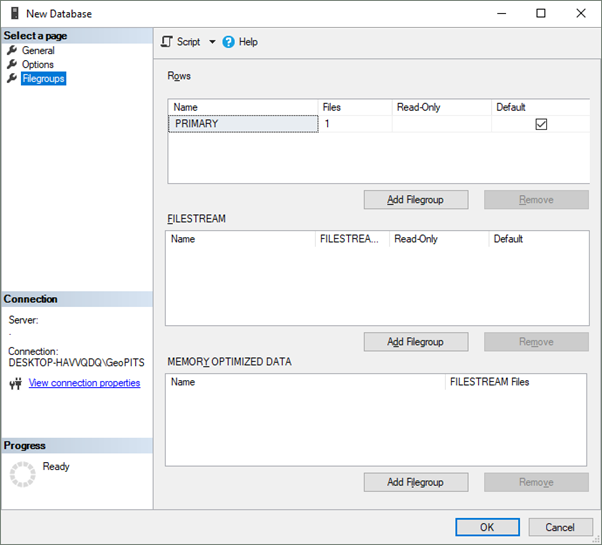
Now, click on 'Add Filegroup' button under FILESTREAM section.
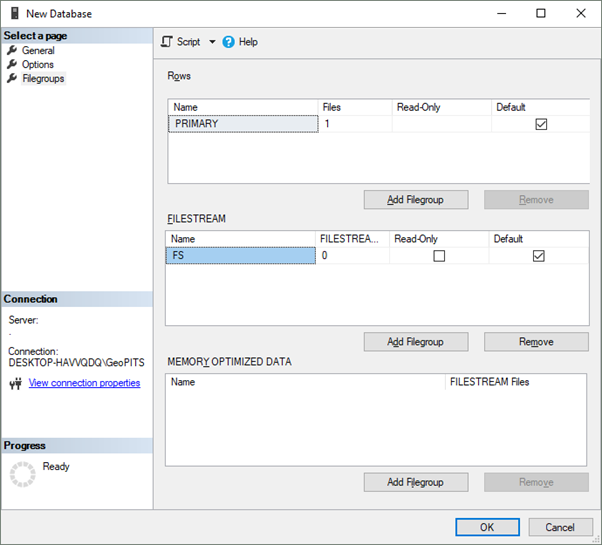
After setting a name for your Filegroup go to 'GENERAL' tab to create a new file. I have created a filestream of name 'FS'.
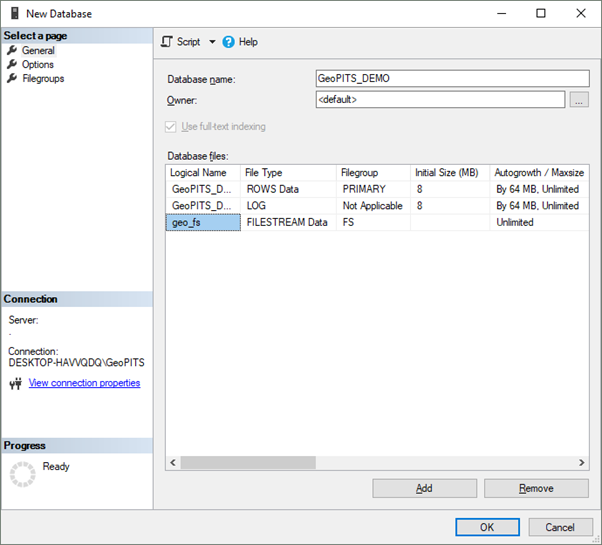
Add new file and choose File type as FILSTREAM Data.
3. Creating File Table
Now we are going to create a sample table in our database to upload all PDFs. But this time we are not going to create regular tables. Instead this type of table is called file table. Using file table, any documents or PDF or for that matter any file can be stored in the SQL Server. The created file tables can be found under the 'FileTables' section under 'Tables' in the left pane.

The following script can be used to create a new FileTable.
USE [GeoPITS_Demo] GO CREATE TABLE [dbo].[PDF_Storage] AS FILETABLE ON [PRIMARY] FILESTREAM_ON [FS]WITH(FILETABLE_DIRECTORY = N'FileTableDB', FILETABLE_COLLATE_FILENAME = Latin1_General_CI_AI)GO
After creating a new file table, simply right click on file table and select ExploreFileTable Directory.
This would open the network folder as shown below. Here we need to paste the copied PDF file.
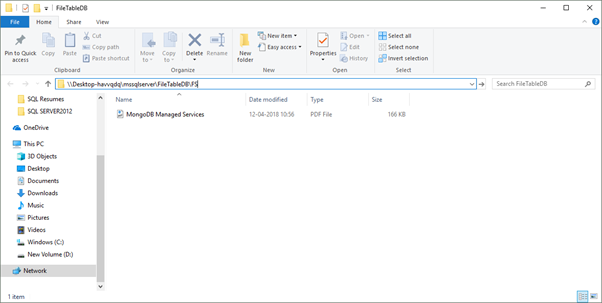
After copying, to cross check if the files have been copied and loaded into the table, one could try to select all records from the table and fetch the PDF file information. The output can be seen as shown below.

So, the above steps enable us to upload PDF files into SQL Server. The same procedure can also be utilised to copy files of any format such as documents/video/audio into the SQL Server directly.
Further reading
If you found this article helpful, you might want to check out these related resources,

Thirunavukkarasu RM
.svg)
.svg)


.avif)


