.svg)
.svg)
.svg)


.svg)


.svg)
.svg)

.svg)


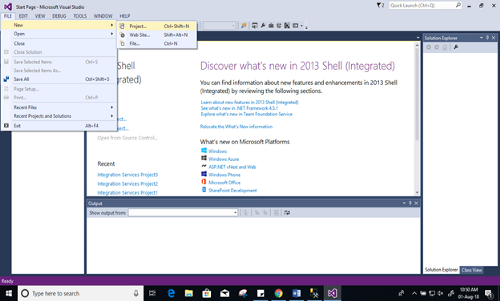
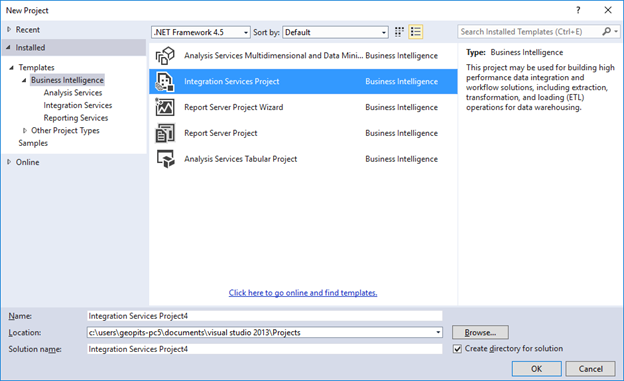
Step 1: Create a new project on SQL Server data tool. Choose the option Integration Services Project, give the name for the new project and click ok.
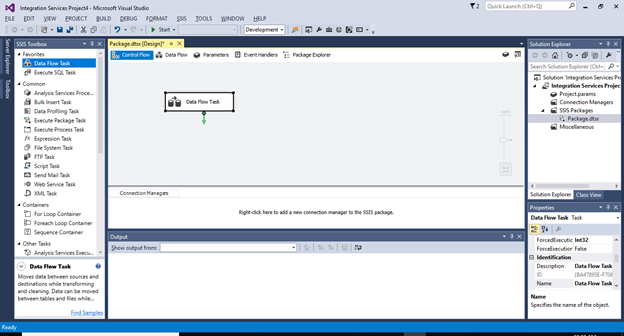
Step 2: From SSIS toolbox drag and drop 'Data Flow Task' to the design screen and double click on the "Data Flow Task" it will redirect to the Data flow design screen.
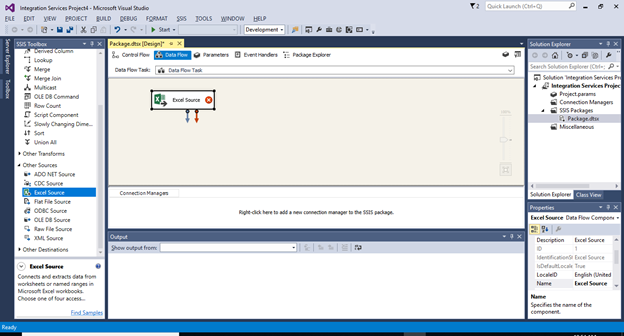
Step 3: Next, on the SSIS toolbox drag and drop sources option to the data flow design screen. In my example I will be using excel source file for the data extraction.
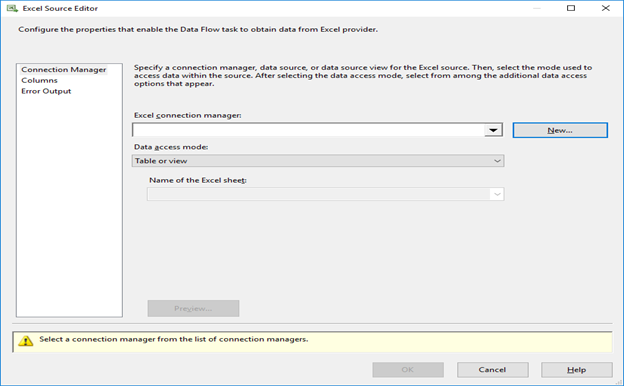
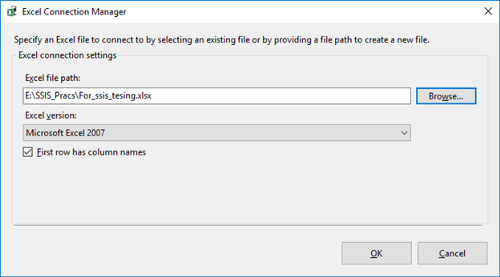
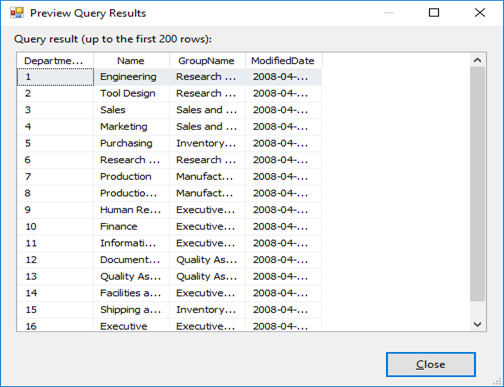
Step 4: Next, double click on the excel source file the editor dialogue box will open. Here click on new button, browse to exile file path from computer and click ok. Once the file is loaded successfully, you can click on the button preview to view extracted data and click ok.
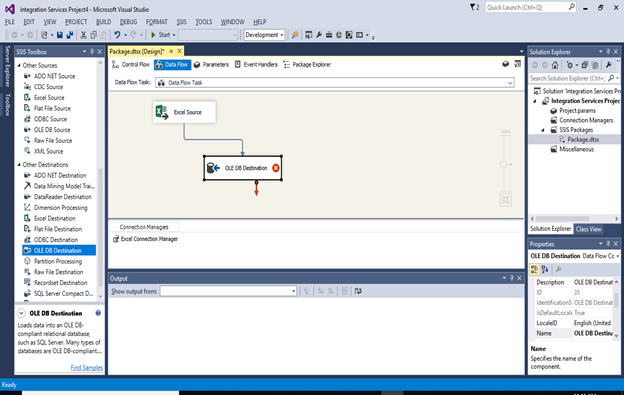
Step 5: Once the excel source is set and ready for extraction. You can choose the destination type drag and drop from the SSIS toolbox. In my example I used ''OLE DB Destination" and double click on the same.
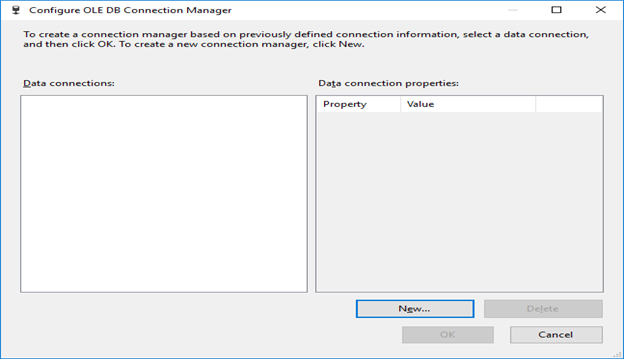
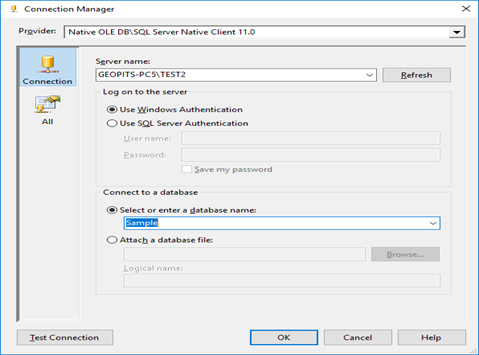
Step 6: Next, click on new button you will be prompted to configure OLE connection manager box there click on new button and add your sql server name. Once the sql server name is given you can select the database name and click ok.
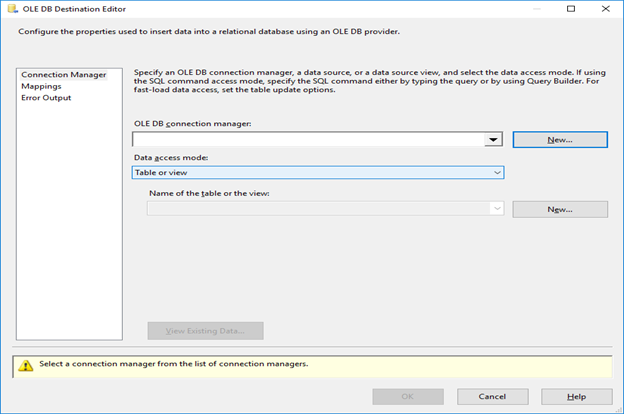
Step 7: Now, choose the existing table or create a new table. In my example I am going to create a new table.
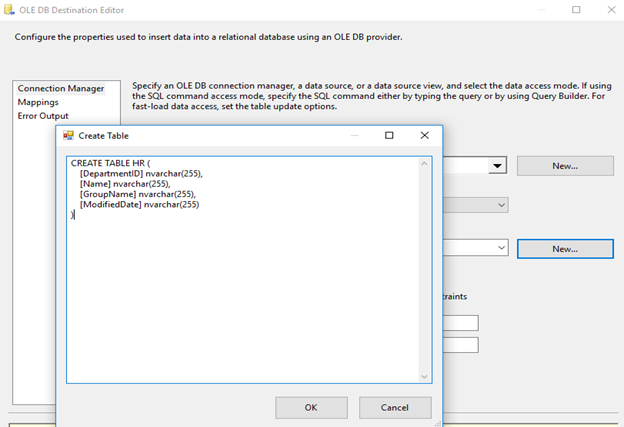
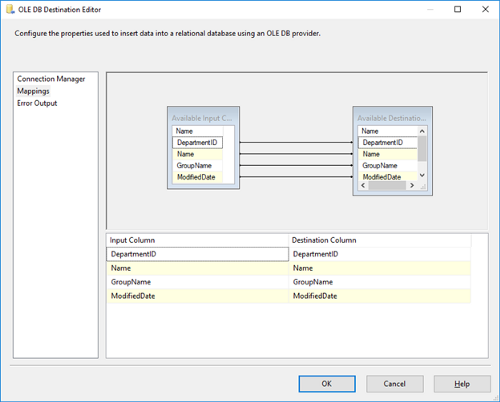
Step 8: Once the table is created, click on the mappings option from the left bar and check if the input column and the destination column are matching and click ok.
Note: If the columns are not matching then the data will not loaded completely.
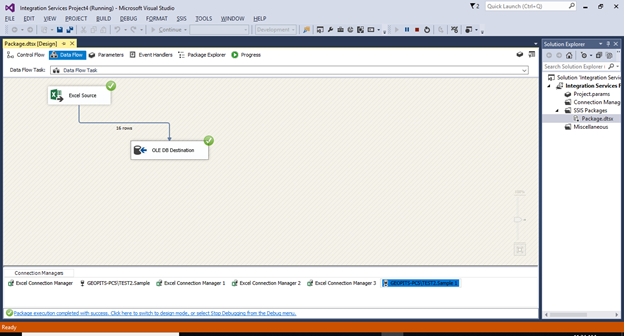
Step 9: Finally click on start execution or F5. Now you can see the green tick on the source and destination resources file. The data has been successfully extracted from excel source and loaded to the database destination.
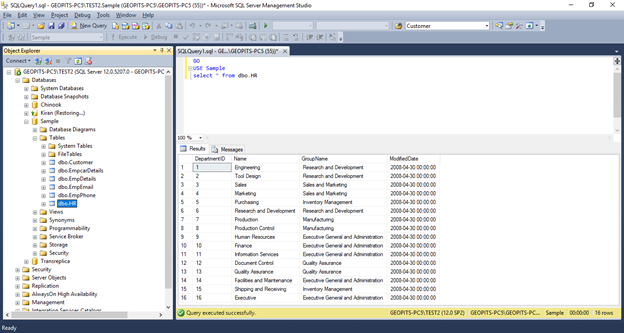
Step 10: You can confirm the data transformation by connecting to SSMS.
.svg)

.svg)